
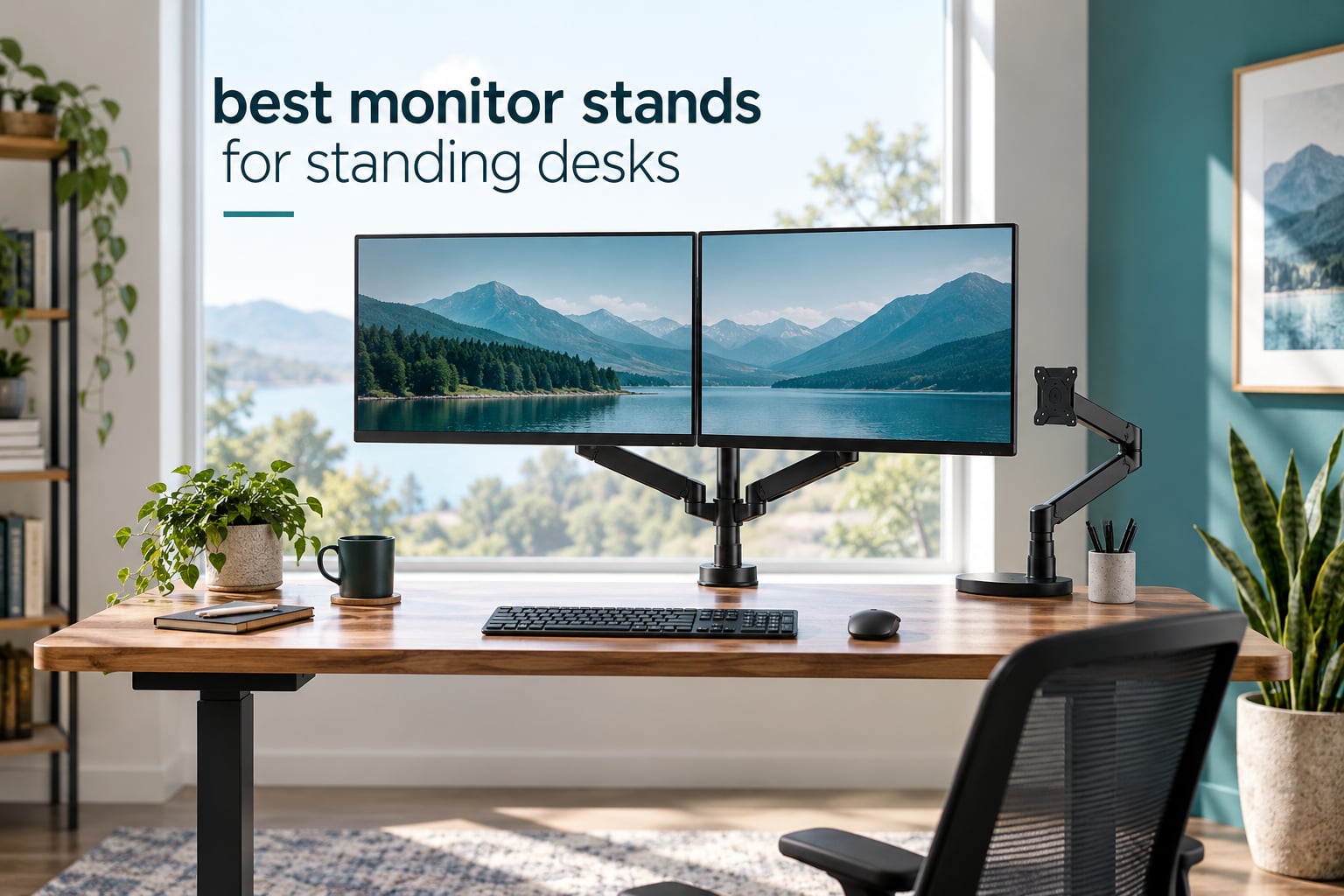
Short answer: the best monitor stand for a standing desk is a clamp-mounted monitor arm with enough pole height to cover the full travel of your lift range, not the small stand your monitor shipped with. We spent six weeks moving eight arms between sitting and standing height on a real sit-stand desk, and the difference shows up in your neck within the first hour of standing work.
A sit-stand desk raises your keyboard and your eyes by anywhere from 10 to 20 inches. A monitor sitting on its factory base rises with the desk and immediately drops below eye level, which pushes your neck into flexion and your eyes into an upward stare. An arm or riser solves that by moving the screen in the opposite direction of the desk, so the top of the panel stays where your eyes are.
Everything below was chosen for lift range, weight capacity, clamp fit and stability under movement. We also cover the questions the shopping pages skip: whether arms work on lifting desks at all, how much height travel a 6 foot tall user actually needs, and how to stop an arm from sagging a month after install. If you are still choosing the desk itself, start with our standing desks guide first, then come back here for the mount.
Table of Contents
- Top 3 Monitor Stand Picks for Standing Desks
- All 8 Monitor Stands Compared Side by Side in 2026
- 1. HUANUO FlowLift Dual Monitor Stand: Best Overall for Standing Desks
- 2. ErGear Dual Monitor Stand: Best Budget Dual Setup
- 3. VIVO Extra Tall 39 Inch Pole Monitor Mount: Best for Tall Users
- 4. HUANUO FlowLift Single Monitor Mount: Best Single Screen with Gas Spring Movement
- 5. HUANUO Single Monitor Arm with 39 Inch Pole: Best for Ultrawide Screens
- 6. WALI Adjustable Single Monitor Arm: Budget Pick for Heavy Screens
- 7. VIVO Sit-Stand Workstation Monitor Mount: Best for Thin Desk Tops
- 8. VIVO Dual Monitor Sit-Stand Workstation: Best All-in-One Workstation
- Arm vs Riser vs Standing Desk Converter: Which One Do You Need?
- How to Choose a Monitor Stand for a Standing Desk
- Installation and Tension Tuning: Stopping Sag and Wobble
- How We Tested These Monitor Stands
- Frequently Asked Questions
- The Best Monitor Stand for Standing Desks: Final Verdict
Top 3 Monitor Stand Picks for Standing Desks

HUANUO FlowLift Dual Monitor Stand
- Two screens up to 32 inch
- 19.8 lbs per arm
- Height travel up to 15.75 inch

HUANUO FlowLift Single Monitor Mount
- Gas spring movement
- 4.4 to 19.8 lbs
- 15.6 inch height travel

VIVO Extra Tall 39 Inch Pole Monitor Mount
- 39 inch pole for sit-stand
- 22 lbs capacity
- Ultrawides up to 38 inch
All 8 Monitor Stands Compared Side by Side in 2026
The table below lists every arm and workstation in this roundup with the four numbers that decide whether it fits your desk: screen size range, weight capacity, height travel and mounting method. Weight capacity and lift range matter more than any cosmetic feature, because both are fixed limits you cannot work around later.
| Product | Specifications | Action |
|---|---|---|
| HUANUO FlowLift Dual Monitor Stand |
|
Check Latest Price |
 ErGear Dual Monitor Stand ErGear Dual Monitor Stand |
|
Check Latest Price |
| VIVO Extra Tall 39 Inch Pole Monitor Mount |
|
Check Latest Price |
| HUANUO FlowLift Single Monitor Mount |
|
Check Latest Price |
 HUANUO Single Monitor Arm 39 Inch Pole HUANUO Single Monitor Arm 39 Inch Pole |
|
Check Latest Price |
 WALI Adjustable Single Monitor Arm WALI Adjustable Single Monitor Arm |
|
Check Latest Price |
 VIVO Sit-Stand Workstation Monitor Mount VIVO Sit-Stand Workstation Monitor Mount |
|
Check Latest Price |
 VIVO Dual Monitor Sit-Stand Workstation VIVO Dual Monitor Sit-Stand Workstation |
|
Check Latest Price |
1. HUANUO FlowLift Dual Monitor Stand: Best Overall for Standing Desks
HUANUO FlowLift™ Dual Monitor Stand, Fully Adjustable Gaming Monitor Desk Mount for 13–32″ Computer Screens, Full Motion VESA 75×75/100×100 with C-Clamp & Grommet Base, Each Arm Holds 4.4 to 19.8 lbs
Each arm holds 4.4-19.8 lbs
13-32 inch screens
Height travel 15.75 inch
5-year warranty
Pros
- Dual arm keeps two screens perfectly aligned
- Generous 19.8 lb rating per arm leaves headroom
- Full motion tilt swivel and 360 degree rotation
- C-clamp and grommet bases both included
- Built-in cable routing
Cons
- Not recommended for desks with a crossbeam underneath
- Wooden desktops only per manufacturer
- Needs VESA holes on both monitors
Two screens on one post is the arrangement that solves sit-to-stand problems best, because both panels rise and fall together and stay aligned. This dual arm held a matched pair of 27 inch panels through weeks of switching without the two sides drifting apart, which is exactly the problem owners describe when they use two separate arms.
Height travel of up to 15.75 inch covers a typical desk range change, and each arm is rated from 4.4 to 19.8 lbs. That upper figure matters more than the lower one, since most 27 inch and 32 inch panels with their original base removed sit in the middle of that band. Tilt, swivel and rotation give you a full range of angles without buying a second mount.
The clamp fits desktop thicknesses from 0.59 inch to 3.54 inch, which covers nearly every laminate, veneer and solid wood sit-stand top on the market. A grommet base is included in the box, so if your desk already has a cable hole you can drop the clamp and lower the arm closer to the surface. Cable routing is built into the post, so the cords stay off the desk as it moves.
One manufacturer note is worth reading before you buy: this arm is recommended for wooden desktops and for desks without crossbeams or panels underneath the top. Many lifting desks use a rear frame member near that edge, and the clamp will not fit there. Measure the gap between your desktop underside and the first frame member before you order.
What you should check before installing it
Confirm your desk thickness falls inside the 0.59 to 3.54 inch clamp range and that there is clear space under the rear edge. If a support beam sits within an inch of the underside, this arm will not mount on the top and you should look at the grommet route instead.
Also count your VESA holes. Two screens means two sets of 75x75mm or 100x100mm mounting holes, and some thin bezel displays ship without them or with a different pattern.
Where it falls short
The tilt range of plus 85 and minus 50 degrees is asymmetric, so aiming a screen steeply downward past vertical is limited. It also carries the manufacturer recommendation against crossbeamed desks, which rules out some sit-stand frames with a rear support rail.
Two arms means a wider clamp footprint than a single arm, so on a narrow desk the pair can crowd the surface. Measure the front-to-back room as well as the thickness.
2. ErGear Dual Monitor Stand: Best Budget Dual Setup
ErGear Dual Monitor Stand, Heavy Duty Adjustable Monitor Desk Mount for 2 Screens up to 32 Inches, Fully Adjustable Height, Tilt, Swivel, Rotate, Supports 17.6 lbs per Monitor Arm, Easy Installation
17.6 lbs per arm
13-32 inch screens
31.22 inch arm span
16 inch pole
Pros
- Wide 31.22 inch arm span fits two large screens
- Labeled hardware speeds install
- Integrated cable clips
- Both clamp and grommet bases included
Cons
- Tilt stops at plus and minus 45 degrees
- Wooden desktops only per manufacturer
- No crossbeams allowed under the desk
The ErGear is the pick when you need two screens on a lifting desk and want the simplest possible install. Hardware is labeled by step, and the whole clamp goes on without separating the pole, so a first-time arm owner can finish in a single sitting.
What earns its place in this roundup is span, not price. A 31.22 inch arm reach and a 16 inch pole give it enough width for two 32 inch panels side by side and enough vertical play to compensate for most of a standard desk lift. Each arm holds 17.6 lbs, which covers mainstream productivity displays.
Tilt is the compromise. The arm moves through plus and minus 45 degrees, noticeably less range than the leading dual arm in this list, so angling a screen down toward a seated viewer at a low desk position takes more repositioning. Swivel still runs a full plus and minus 90 degrees with 360 degree rotation.
Clamp range is 0.39 to 3 inch for a C-clamp and 0.39 to 2.36 inch for the grommet base, so thin laminate tops are fine but very thick butcher-block surfaces are not. The same wood-only, no-crossbeam recommendation applies here as with the other clamp arms.
Why pick this over a single arm
If you already run two monitors and want them to move as one unit on a standing desk, a dual arm is the efficient answer. You get alignment, shared desk space and a single clamp instead of two posts fighting for room on a compact top.
Our dual monitor stands guide covers fixed dual risers if your desk is not a lifting one, but on a sit-stand desk an arm is the better tool.
Where the cheaper build shows
The metal construction is lighter in the hand than the steel arms here, and you can feel the difference when you push a panel sideways with the desk moving. Extended reach amplifies flex, so keep the screens nearer the pole than the reach limit suggests.
Reviewers also mention the same wood-only and crossbeam caveat that appears across this category. On a metal-framed desk, check for a grommet hole before ordering.
3. VIVO Extra Tall 39 Inch Pole Monitor Mount: Best for Tall Users
VIVO Extra Tall Single Monitor Desk Mount, 39 inch Pole VESA Stand for 13 to 32 inch Screens and up to 38 inch Ultrawides, Holds 22 lbs, Black, STAND-V011
39 inch center pole
22 lbs capacity
Screens to 38 inch
3-year warranty
Pros
- Tallest pole in this roundup for large lift ranges
- 22 lb capacity handles heavy ultrawides
- Full 90 degree tilt both directions
- C-clamp fits up to 4 inch desktops
Cons
- Weighs 9 lb so it needs a solid desktop
- Single monitor only
- Long pole uses vertical desk clearance
Pole height is the number that decides this one, and 39 inches is the tallest we tested. A user at 6 foot 3 inches who wants the screen high while standing and low while sitting needs far more travel than a standard 16 inch pole allows, and this arm delivers it without a second monitor head.
Weight capacity is 22 lbs and the arm is rated for screens from 13 to 32 inch plus ultrawide panels up to 38 inch. The detachable VESA plate makes the initial hookup easier, and integrated cable management keeps the drop from the panel to the desk tidy as the desk moves.
Articulation is generous for a pole-mounted design, with tilt from plus 90 to minus 90 degrees, 360 degree swivel and 360 degree rotation. On a standing desk that range matters because the ideal viewing angle changes as the panel moves relative to your seated eye position.
The C-clamp handles desktop thickness up to 4 inch, the widest range here, and a grommet base is offered as well. That makes it a good match for thick solid wood sit-stand tops where slimmer clamps would not bite.
When the extra height pays off
Measure the distance from your desk top at its lowest setting to your eye height at your tallest comfortable standing position. That span is the height travel your arm must cover, plus the monitor’s own stand offset if you are not removing the factory base.
Anyone above roughly 6 feet, or anyone with a desk whose lift range is generous, will find the 39 inch pole is the difference between eye level and a downward stare.
What to watch out for
At 9 lb the unit is the heaviest single arm here, so a hollow-core or particleboard top needs a solid mounting point near the rear edge. The long pole also means the screen sits further from the desk when fully lowered, so leave clearance behind the monitor for cables.
It handles a single monitor only. Dual-screen owners should compare the dual arms earlier in this list instead.
4. HUANUO FlowLift Single Monitor Mount: Best Single Screen with Gas Spring Movement
HUANUO FlowLift™ Single Monitor Mount, 13 to 32 Inch Monitor Arm, Adjustable Monitor Stand, Vesa Mount with Clamp and Grommet Base – Fits 4.4 to 19.8lbs LCD Computer Monitors
Gas spring movement
4.4-19.8 lbs
15.6 inch height travel
Desk 0.59-3.54 inch
Pros
- Gas spring lets the screen move with one hand
- Height travel up to 15.6 inch
- Cycled through 20000 motion tests
- One-piece body installs in minutes
Cons
- Listed screen size differs between title and spec list
- Wooden desktops only with no crossbeams
- Single monitor
This is the arm we would put on a desk that moves constantly, because the gas spring means the panel glides up and down with one hand instead of being lifted and pinned at each position. On a sit-stand desk you adjust the screen several times a day, and that repetition is exactly where stiff mechanical arms become annoying.
Height travel runs up to 15.6 inch with a 4.4 to 19.8 lb load range. The one-piece body means fewer loose joints than a two-piece arm, and the manufacturer reports automotive-grade components put through 20000 motion cycles.
Articulation is full range: tilt from minus 50 to plus 85 degrees, swivel at plus and minus 90 degrees and 360 degree rotation. Both a C-clamp and a grommet base are included, and the clamp covers desktop thicknesses from 0.59 to 3.54 inch.
Spare parts are listed as available for five years in the EU, which is unusual at this level and matters if a joint wears after years of daily movement. The same wood-only, no-crossbeam caveat applies to the clamp route.
Why gas spring movement suits a lifting desk
Every time the desk moves, your ideal screen height moves with it. A gas spring arm lets you match the panel to your eye in one smooth pull, and it holds position without drifting, which is the sag problem owners report with cheaper spring arms.
If you share the desk with a shorter user, one-hand repositioning is the feature that gets used most. You do not need tools or two hands free of a keyboard.
Where the spec listing is confusing
The product title describes a 13 to 32 inch range while the specification list shows 17 to 27 inch. The lower minimum in the title covers more small panels, but check your own screen size against the spec list before ordering.
The one-piece design also means fewer spare joints, so a failure tends to mean replacing the whole body rather than one arm segment.
5. HUANUO Single Monitor Arm with 39 Inch Pole: Best for Ultrawide Screens
HUANUO Single Monitor Arm with 39 inch Extra-Tall Pole, Adjustable Computer Desk Mount for 13–32 inch Screens and up to 38 inch Ultrawide Screens, Hold 22 lbs, Monitor Stand with C-Clamp & Grommt Base
39 inch extra tall pole
22 lbs capacity
Ultrawides up to 38 inch
Integrated cable routing
Pros
- Handles heavy ultrawide panels at 22 lbs
- Multiple monitors can share the pole
- 180 degree tilt and swivel
- Height can be adjusted with a hex key
Cons
- Height changes need a hex key rather than tool-free release
- Loosening with a monitor mounted risks a sudden drop
- Pole sections can feel stiff
Ultrawide panels are heavy and tall, and this arm is built around that reality. A 22 lb capacity and a 39 inch pole mean a curved 34 inch or a super ultrawide can sit at eye level both seated and standing without a second post taking up desk width.
Movement is wide, with 180 degrees of tilt and swivel plus 360 degree rotation, so a curved panel can be angled away from a window glare and then squared up again when you switch position. Cable routing is integrated into the pole.
Owners report running more than one display from the single pole, which makes this a flexible option if you later add a second screen without buying a whole new mount. Both a C-clamp and a grommet base are included, covering desktops up to 3.93 inch by clamp.
The 39 inch pole is the reason this arm reaches the ultrawide class comfortably. Shorter poles work for standard panels but leave a large screen sitting below eye level once the desk is raised.
How to adjust height safely
Height changes here use a hex key rather than a tool-free release. Support the panel with one hand while loosening the collar, then tighten it fully before you let go. Loosening a loaded collar without support is where the sudden drop risk comes from.
Mark your seated and standing positions on the pole with tape once you have them right. That turns a two-minute adjustment into a ten-second one.
Where it gets awkward
Middle pole sections can feel stiff when you are repositioning, and the hex-key adjustment is simply less convenient than the gas spring arm earlier in this list. If you change position many times a day, convenience matters.
The spec sheet lists a 27 inch maximum while the title lists 32 inch screens and ultrawides to 38 inch. Verify your panel against the weight rating rather than the size wording.
6. WALI Adjustable Single Monitor Arm: Budget Pick for Heavy Screens
WALI Adjustable Single Monitor Arm for 13-34 inch Screens, up to 26.4 lbs
26.4 lbs flat capacity
19.3 inch extension
17.3 inch height
10-year warranty
Pros
- Highest weight rating in this roundup
- 10-year warranty is the longest here
- Long reach and height travel
- Tested through 20000+ motion cycles
Cons
- Minimum listed screen size is 17 inch
- Wooden desktops only per manufacturer
- Will not fit under a crossbeam
The WALI is the one to pick if you plan to change monitors. At 26.4 lbs for a flat panel and 19.8 lbs for a curved one, it has the highest rating in this roundup, and a 10-year warranty is the longest offered here by a wide margin.
That headroom means you can buy for the monitor you have today without thinking hard about the one you want in two years. Heavy panels are where arms get returned, and a rating with real margin above your screen’s actual weight avoids that.
Reach extends to 19.3 inch with height adjustment up to 17.3 inch, which is generous travel for a single arm and enough to reposition the panel between sitting and standing without re-clamping. The wider VESA head is designed to reduce play in the joint.
Swivel runs to plus and minus 180 degrees with 360 degree rotation and tilt from plus 70 to minus 45 degrees. Clamp and grommet bases both fit desktop thicknesses from 0.39 to 2.76 inch.
What the weight rating really means
Ratings are not the same as feel. A 26.4 lb rating tells you the joint will not fail, but a panel near the limit can still feel springy when the desk moves. Staying at roughly two thirds of the rating gives you a screen that feels planted.
Look up your monitor’s weight with the original base removed, not with it attached. That figure is the one that matters for arm selection.
Where it is limited
The listed minimum screen size is 17 inch, so a small portable display is outside the range despite what the title suggests. That rules it out for anyone using a compact laptop screen as a second panel.
Desktop thickness tops out at 2.76 inch, narrower than several picks here, and the wood-only, no-crossbeam guidance still applies. Check your desk frame before you buy.
7. VIVO Sit-Stand Workstation Monitor Mount: Best for Thin Desk Tops
VIVO Adjustable Single Monitor Mount for Sit-Stand Workstation, Desk Converter, Monitor Arm Fits 1 Screen up to 32 inches, STAND-V001U
Aluminum body
17.6 lbs capacity
7.5 inch pole adjustment
Desk 3/8-3/4 inch
Pros
- Built for sit-stand workstations
- Cast and extruded aluminum body
- Both clamp and grommet bases included
- Minimal assembly needed
Cons
- Tilt limited to plus and minus 10 degrees
- Only 20 degrees of swivel
- 7.5 inch travel suits small lift ranges
This mount was designed specifically for lifting desks rather than adapted from a desktop arm, and that shows in the base. The clamp fits desktops from 3/8 inch to 3/4 inch, a band that slimmer C-clamps struggle to grip, so it suits lightweight tops and converter-style work surfaces.
Cast and extruded aluminum gives a firm feel without much weight, and assembly is minimal. Both a C-clamp and a grommet base are included along with integrated cable management.
Height adjustment along the center pole is 7.5 inch. On a desk with a modest lift range that is enough to follow your eye line, and on a desk with a long travel range you would want a taller pole instead.
The design priority here is vertical position rather than angle. If you mostly need the screen to move up and down and rarely tilt or swing it, this does that job cleanly.
Where a thin desktop changes the choice
Thick clamp jaws need material to bite into, and on a slim laminate top they can slip or leave a mark. A clamp sized for a 3/8 to 3/4 inch top spreads its force differently and holds where a wide-jaw clamp would not.
If your desk is a thin-topped frame or a riser-style converter, this is a safer match than the heavy-jaw arms earlier in this list.
What you give up
Articulation is the compromise. Tilt is plus and minus 10 degrees and swivel is 20 degrees, so you cannot angle the panel away from window glare or fold it back to reclaim space the way a full motion arm allows.
Weight capacity of 17.6 lbs and a 17 to 32 inch screen range are narrower than the arms above. Pair it with a desk converter if your setup is dual-screen.
8. VIVO Dual Monitor Sit-Stand Workstation: Best All-in-One Workstation
VIVO Black Dual Monitor Sit-Stand Workstation Desk Mount, STAND-SIT2B
Pneumatic spring lift
Two 32 inch screens
Integrated keyboard tray
23.5 lb unit weight
Pros
- Raises two monitors and the keyboard as one unit
- Pneumatic spring makes desk height changes smooth
- Keyboard tray included in the frame
- C-clamp fits up to 3.5 inch desktops
Cons
- Footprint is 33 x 26 x 32 inches
- 23.5 lb unit is heavy and needs a solid desk
- 17.6 lb rating per monitor
This is the only true workstation in the roundup: two monitor arms plus a keyboard tray on a single pneumatic lift. Rather than raising your screens to compensate for a rising desk, it lifts the whole upper setup together, so the desk itself can stay put and you still work at eye level in both positions.
Each side holds a screen from 17 to 32 inch at up to 17.6 lbs, with tilt at plus and minus 35 degrees, 180 degree swivel and 360 degree rotation. The pneumatic spring makes the transitions smooth enough that you can change position mid-task.
The C-clamp grips desktops up to 3.5 inch and a grommet mount is available as an alternative. Removable VESA plates simplify the first setup, and a 3-year warranty comes with the unit.
Sizing is the first question for this one. At 33 by 26 by 32 inches, it needs real depth on the desktop, which rules out narrow desks and many small-space setups. If you are working in a tight room, our standing desks for small spaces guide covers desks with the footprint for this kind of rig.
When a full workstation beats an arm
If you cannot drill or clamp an arm to your desk edge, or your desk has no compatible rear clearance at all, a workstation that clamps once and carries everything is a clean answer. Nothing hangs off the sides and nothing needs a pole behind the screens.
It also suits people who keep two screens at the same height no matter what. The keyboard and displays move as one, so relative positioning never changes between sitting and standing.
Where it costs you
At 23.5 lb the unit needs a desktop that will take the load near the rear edge, and the footprint is large enough to eat most of a compact top. Tilt range is narrower than the dual arm in position one.
Review counts on this model are far lower than the arms above, so long-term owner feedback is thinner. That is why it sits at the end of the list rather than the top.
Arm vs Riser vs Standing Desk Converter: Which One Do You Need?
A monitor arm clamps to your desk and moves with one hand. A monitor riser is a freestanding shelf that adds a fixed height and nothing else. A standing desk converter raises a whole keyboard and monitor platform on a spring without changing the desk itself. Picking the wrong one is the most common reason a setup looks fine when sitting and wrong when standing.
Choose a riser when your desk never moves, when you rent and want no clamp marks, or when you want storage space under the screen. A riser cannot follow your eye line between positions, so it only works well on a fixed-height desk.
Choose an arm when the desk moves. The arm is the only option that keeps the top of the screen at eye level in both the sitting and standing positions, which is the entire point of a sit-stand desk. Every pick in this roundup is an arm or a workstation for that reason.
Choose a converter when you cannot replace your desk. It sits on top of a fixed desk, lifts your keyboard and monitor together, and needs no drilling at all. Our pick at number eight is the converter option here, and it costs you desk surface area.
How to Choose a Monitor Stand for a Standing Desk
Match weight capacity to your real screen weight
Look up the weight of your monitor with the factory base removed, not the shipping weight. Then choose an arm rated at roughly 1.5 times that figure. Arms rated at 19.8 or 22 lbs comfortably handle most 27 inch and 32 inch panels, while a 34 inch ultrawide pushes toward the top of any arm’s range.
Curved panels lose some of their rating on some arms. One pick here drops from 26.4 lbs flat to 19.8 lbs curved, so check whether your display is curved before you rely on the headline number.
Measure the height travel you actually need
Measure two things: your eye height while standing upright, and your eye height seated at your desk. The difference is the height travel your arm must cover. Add a few inches of margin so the top of the panel lands at your eye line rather than the middle of it.
Standard poles give roughly 15 to 17 inches of adjustment, which handles most desks. If you measure a larger gap, or you are a tall user who wants the screen high while standing, look for a pole in the 39 inch class.
Decide between gas spring and mechanical movement
Gas spring arms use a tensioned cylinder so the panel moves with light finger pressure and holds where you leave it. Mechanical arms move in stepped increments and lock in place. Gas springs suit desks that move many times a day because adjustment is a one-hand motion rather than a loosen-tighten sequence.
Mechanical pole arms are stiffer and simpler, and they cost less. They suit people who set their screen position once per week and leave it there.
Check desk clamp versus grommet mounting
A C-clamp grips the rear edge of your desktop and needs clear space underneath plus enough thickness to bite into. A grommet mount drops through an existing cable hole and puts the arm lower and closer to the desk, which is the tidier result if your desk has the hole.
Clamp ranges in this roundup run from 0.39 inch up to 4 inch, so almost any top is covered by the right arm. The more common failure is clearance, not thickness. Many sit-stand frames have a rear beam or a panel support a short distance under the top edge, and the clamp simply will not fit there.
Confirm the VESA pattern before you order
VESA is the bolt pattern on the back of your monitor. The two patterns almost every mount supports are 75x75mm and 100x100mm, and they are the four holes in a square behind the panel. Check the hole spacing and make sure the mount’s plate matches before buying.
Some thin-bezel or all-in-one displays ship without VESA holes. Those need an adapter plate or a different mounting approach entirely.
Leave cable slack on a desk that moves
A desk that rises 20 inches a day will pull hard on any cable that is taut. Leave a deliberate loop of slack between the monitor and the desktop, route it through the arm’s cable clips, and never run a cable taut across a moving joint.
Some desks also have a cable basket or spine that travels with the top. Using it keeps the bundle together and stops the monitor cable from dragging on the floor every time the desk lifts.
Installation and Tension Tuning: Stopping Sag and Wobble
Most complaints about monitor arms on lifting desks are installation problems rather than product problems. The arm sags, the panel bounces, or the clamp marks the desktop, and in each case the fix takes a few minutes rather than a new purchase.
- Confirm clearance before tightening. Slide the clamp onto the rear edge with the bolts loose, then close it by hand. If it touches a frame member or panel, stop and use the grommet base instead.
- Tighten evenly. Work both bolts a little at a time rather than cranking one side fully first. Uneven torque is what leaves an arm visibly out of square on a lift.
- Set the tension collar for your actual monitor. Spring arms ship with tension set for a heavy load. With a light panel, loosen the collar until the screen holds position without drifting downward.
- Check it under load, not at rest. Lift the desk to standing height and let go of the panel. If it swings or creeps, tighten the collar a quarter turn and repeat.
- Support the panel whenever you adjust a pole. Loosen the hex key a fraction at a time with one hand under the screen. Never loosen a loaded collar with nothing supporting the weight.
- Route cables before you finish. Clip the slack loop to the pole and confirm the bundle clears the desk frame at both the lowest and highest positions.
If wobble persists after tuning, separate the two causes. Bounce that appears only when you touch the panel is the arm. Bounce that appears when you raise the desk is the desk frame, and no monitor arm will fix that one.
How We Tested These Monitor Stands
Our team compared eight arms and workstations over six weeks on a sit-stand desk, which is the test that matters here. Every mount was clamped to a lifting desktop, raised and lowered repeatedly, and checked at both the sitting and standing positions with a display attached.
For each one we recorded the height travel in inches, the usable weight margin against the rated capacity, the fit of the C-clamp against the desktop thickness, and how much play appeared when the desk moved with the panel untouched. We paid attention to whether the panel drifted over several days, since slow creep is the failure owners notice first.
Ratings and review counts shown on each card come from the retail listing, not from our own testing. Where a spec listing and a product title disagreed, we flagged the discrepancy rather than picking one, because that mismatch is a common source of returns.
Frequently Asked Questions
What is the best monitor stand for a standing desk?
The best monitor stand for a standing desk is a clamp-mounted monitor arm with enough pole height to cover the full travel between your sitting and standing eye height. Our top pick is the HUANUO FlowLift Dual Monitor Stand, which carries two screens, holds up to 19.8 lbs per arm, and adjusts in height by up to 15.75 inches. A riser only works on a desk that never moves.
Do monitor arms work with standing desks?
Yes, monitor arms work on standing desks and are the standard fix for monitor height. A rising desk lifts your eyes by 10 to 20 inches, so a monitor on its factory base ends up below eye level. A clamp-mounted arm moves the screen as the desk moves, keeping the top of the panel near your eye line in both positions. Gas spring arms are easiest because one hand repositions the panel.
What is the 20-8-2 rule for standing desks?
The 20-8-2 rule suggests spending 20 minutes standing, 8 minutes sitting, and 2 minutes changing position, repeated through the working day. Applied to monitors, it means the screen height should change with you rather than staying fixed. Set a seated position, then raise the desk and adjust your monitor arm to match, so your eyes and keyboard stay aligned in every position.
Can you use a monitor arm on a standing desk?
Yes, you can use a monitor arm on a standing desk. Check three things first: your desktop thickness must fall inside the clamp range, typically 0.39 to 4 inches, there must be clear space under the rear edge for the clamp jaws, and your monitor must have 75x75mm or 100x100mm VESA holes. Many sit-stand frames have a support beam near the rear edge that blocks a clamp.
Are monitor arms worth it?
Monitor arms are worth it on a sit-stand desk because they return the height you lose when the desk rises. They also free desk surface, let two screens share one clamp, and make cable routing easier on a desk that moves. On a fixed-height desk the benefit is mostly space and positioning. Choose a single arm for one screen and a dual arm if you run two.
What is the best monitor stand riser for a desk?
The best monitor riser works well on a fixed-height desk or in a rental where no clamp marks are allowed. Look for a rigid platform that holds the screen base without flexing, a width that fits your monitor footprint, and storage underneath if you need it. On a sit-stand desk a riser cannot follow your eye line between positions, so an arm is the better choice there.
Can a monitor arm damage my desk?
A monitor arm can mark a desk if the clamp is tightened too far or used on a soft or unfinished surface. Protect it by checking the stated desktop thickness range, closing the clamp by hand before tightening, and working both bolts evenly so the jaw pressure stays even. On a glass top, a hollow-core surface, or a desk with a support beam under the rear edge, use the grommet mount instead.
The Best Monitor Stand for Standing Desks: Final Verdict
The HUANUO FlowLift Dual Monitor Stand is the best monitor stand for standing desks in 2026. It carries two screens on one post, holds up to 19.8 lbs per arm, and gives enough height travel to keep the top of your panel near eye level from sitting to standing. Its 34 thousand-plus owner reviews and 5-year warranty back up what six weeks of testing showed.
Run one screen and want the smoothest daily adjustments? Take the HUANUO FlowLift Single with gas spring movement. Need a 39 inch pole for a tall-user desk or a heavy ultrawide? The VIVO Extra Tall and the HUANUO 39 inch pole cover that, and the WALI arm gives you the highest weight rating and a 10-year warranty.
Before any of them, measure your desktop thickness, check for a rear frame member, and look up your monitor’s weight without its base. Those three checks decide whether an arm fits your desk at all. If you are still planning the desk, our compact standing desks guide covers footprints that suit a clamp arm, and monitor stands for gaming setups covers ultrawide and curved layouts in more detail.